
how to setup vps server hostinger with php nginx and mysql

Deploy Your Laravel API on a VPS: Complete Hostinger Guide
You've built an amazing, production-ready backend API—great work! Now it's time to share it with the world! While platforms like Vercel or Heroku make things super easy, deploying on your own Virtual Private Server (VPS) helps you learn invaluable real-world skills and gives you complete control. We'll be using Hostinger for this!
🎯 SPECIAL DISCOUNT FOR OUR READERS!
Use our exclusive code to get an extra discount on Hostinger VPS
🚀 GET DISCOUNT WITH KEEPONSTACK
🎯 Why Deploy on a VPS?
Think of a VPS as your own personal computer living in the cloud! It's pretty cool—you get your own dedicated resources, full control with root access, and the freedom to customize everything exactly how you want it. Much better than shared hosting where you're splitting resources with others!
🎓 Real-World Skills: You'll pick up awesome skills in server management, deployments, and debugging—exactly what companies are looking for!
⚙️ Full Control: You can deploy any application you want, run your own databases, or try out exciting new technologies.
💰 Cost-Effective: Hostinger's VPS plans are super affordable, and even better with the KEEPONSTACK discount!
📋 Let's Get Ready for Deployment!
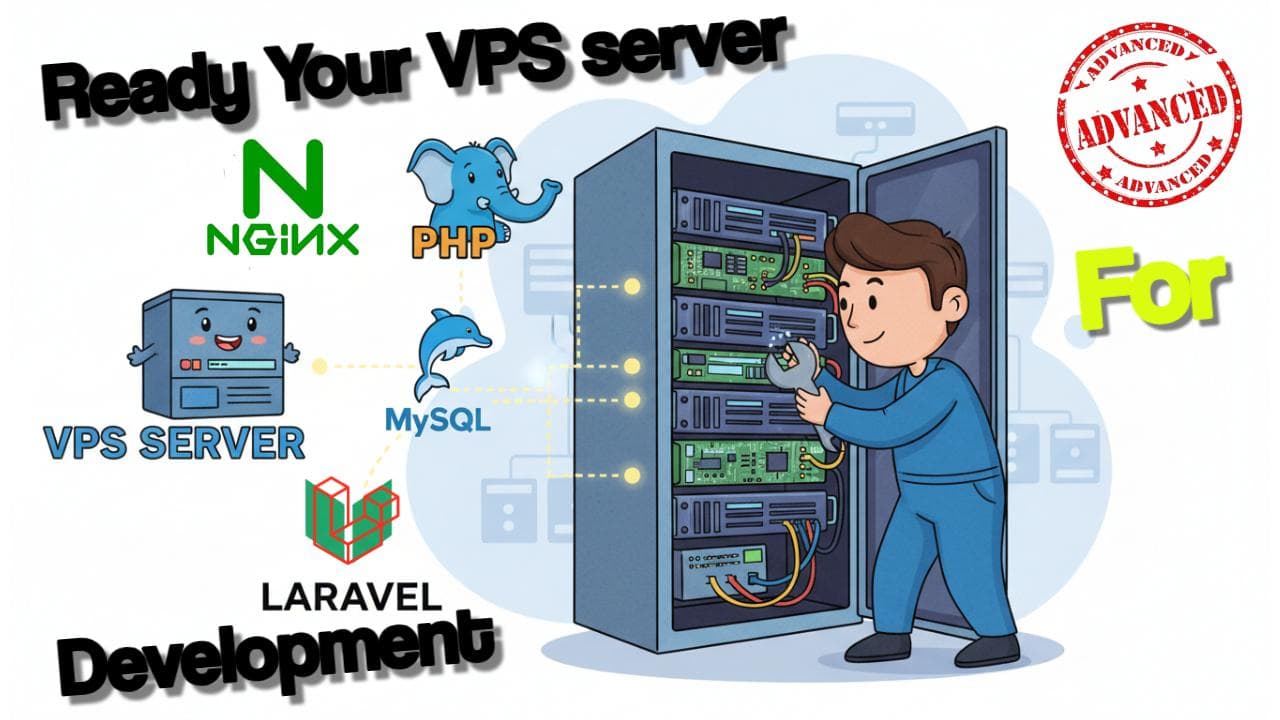
We'll set up a classic "LEMP" stack (Linux, Nginx, MySQL, PHP) which works wonderfully with Laravel!
🎯 Prerequisites Checklist
✅ Hostinger VPS account
✅ GitHub repository with your Laravel code
✅ Domain name (optional but recommended)
✅ Basic terminal/SSH knowledge
🔧 1. Get Your VPS
Head over and sign up for a Hostinger VPS plan—the 1-core plan is a great place to start! Just follow the onboarding process to set your root password and pick a data center close to you.
📦 2. Push Code to GitHub
Make sure all your code is committed and pushed to a GitHub repository. It's the smoothest way to get your code onto your VPS!
git init
git add .
git commit -m "Initial commit"
git branch -M main
git remote add origin YOUR_GITHUB_REPO_URL
git push -u origin main
🔌 Let's Connect to Your VPS!
Hostinger makes this super easy with their browser-based terminal, or if you prefer, you can connect using SSH from your own computer's terminal!
# Use the SSH command from your Hostinger dashboard
ssh root@your-vps-ip
# Enter your root password when prompted
🎉 Success!
Awesome! You're now in control of your remote server—exciting stuff!
⚙️ Let's Set Up Your Server!
Now that you're logged in, let's start by updating the system packages—it's a great first step to make sure everything's current!
🔄 Update Your System and Install the Essentials
# Update & Upgrade package lists
apt update && apt upgrade -y

# Create a new user
adduser dineshstack
usermod -aG sudo dineshstack

# Login as new user
su - dineshstack

# Update & upgrade system
sudo apt update && sudo apt upgrade -y

# Enable firewall and allow basic services
sudo ufw allow OpenSSH
sudo ufw allow 'Nginx Full'
sudo ufw enable
🌐 Installing Nginx
sudo apt install nginx -y
sudo systemctl enable nginx
sudo systemctl status nginx
🎯 Test it: Visit http://your_server_ip → You should see the Nginx welcome page!
🐘 Installing Multiple PHP Versions
# Install repository
sudo apt install software-properties-common -y
sudo add-apt-repository ppa:ondrej/php -y
sudo apt update

# Install PHP 8.4 specific libraries (or your preferred version)
sudo apt install php8.4 php8.4-fpm php8.4-cli php8.4-mysql php8.4-mbstring php8.4-bcmath php8.4-curl php8.4-xml php8.4-zip php8.4-redis php8.4-readline php8.4-intl php8.4-gmp php8.4-xhprof php8.4-xdebug -y

# Check versions
php -v
sudo update-alternatives --config php
🗄️ Setting Up MySQL
sudo apt install mysql-server -y
sudo mysql_secure_installation

# Login
sudo mysql -u root -p

# Set a root db user new password
ALTER USER 'root'@'localhost' IDENTIFIED WITH mysql_native_password BY 'your_secure_password';
FLUSH PRIVILEGES;

# Create database & user
CREATE DATABASE subscription_tracker;
CREATE USER 'dineshstack_user'@'localhost' IDENTIFIED BY 'strongpassword';
GRANT ALL PRIVILEGES ON subscription_tracker.* TO 'dineshstack_user'@'localhost';
FLUSH PRIVILEGES;
EXIT;
📦 Installing Composer
sudo apt install unzip curl -y
cd ~
curl -sS https://getcomposer.org/installer | php
sudo mv composer.phar /usr/local/bin/composer
composer -V
📚 Installing Git
sudo apt install git -y
🚀 Application Deployment Process
⚠️ Important Notes
Make sure you're in the
/var/wwwdirectoryUse
sudowhen needed for permissionsKeep your database credentials secure
Test each step before proceeding
1. 📥 Clone Your Repository
cd /var/www
sudo git clone https://github.com/yourusername/subscription-tracker.git
cd subscription-tracker
2. 📦 Install PHP Dependencies
composer install
3. ⚙️ Set Up Environment File
cp .env.example .env
nano .env
Update with your production values:
APP_ENV=production
APP_DEBUG=false
APP_URL=http://your-domain.com

DB_CONNECTION=mysql
DB_HOST=127.0.0.1
DB_PORT=3306
DB_DATABASE=subscription_tracker
DB_USERNAME=dineshstack_user
DB_PASSWORD=strongpassword

QUEUE_CONNECTION=database
# ... other production configurations
4. 🔑 Generate Application Key and Run Migrations
php artisan key:generate
php artisan migrate
5. 🔐 Install Passport Keys
php artisan passport:keys --force
6. 📝 Set Permissions
chown -R www-data:www-data /var/www/subscription-tracker
sudo chown -R www-data:www-data storage bootstrap/cache
sudo chmod -R 775 storage bootstrap/cache
⚛️ Setting Up Inertia React
📦 Installing Node.js & npm
# Install Node.js via nvm
curl -o- https://raw.githubusercontent.com/nvm-sh/nvm/v0.39.7/install.sh | bash
source ~/.bashrc
nvm install --lts
node -v
npm -v
🏗️ Build React Frontend
chown -R dineshstack:www-data /var/www/subscription-tracker
cd /var/www/subscription-tracker
npm install
npm run build
🌐 Configuring Nginx for Laravel
Create an Nginx configuration file for your site:
sudo nano /etc/nginx/sites-available/subscription.dineshstack.com
Add the following configuration:
server {
    listen 80;
    server_name subscription.dineshstack.com www.subscription.dineshstack.com;
    root /var/www/subscription-tracker/public;

    add_header X-Frame-Options "SAMEORIGIN";
    add_header X-Content-Type-Options "nosniff";

    index index.php;

    charset utf-8;

    location / {
        try_files $uri $uri/ /index.php?$query_string;
    }

    location = /favicon.ico { access_log off; log_not_found off; }
    location = /robots.txt  { access_log off; log_not_found off; }

    error_page 404 /index.php;

    location ~ \.php$ {
        fastcgi_pass unix:/var/run/php/php8.4-fpm.sock;
        fastcgi_param SCRIPT_FILENAME $realpath_root$fastcgi_script_name;
        include fastcgi_params;
    }

    location ~ /\.(?!well-known).* {
        deny all;
    }
}
Enable the site and test configuration:
sudo ln -s /etc/nginx/sites-available/subscription.dineshstack.com /etc/nginx/sites-enabled/
sudo nginx -t
sudo systemctl reload nginx
✅ Configuration Test
If you see "syntax is okay" and "test is successful", your Nginx configuration is correct!
🚀 Advanced Setup
📨 Setting Up Queue Workers
Create a systemd service for queue workers:
sudo nano /etc/systemd/system/laravel-queue.service
Add the following content:
[Unit]
Description=Laravel Queue Worker
After=network.target

[Service]
User=www-data
Group=www-data
WorkingDirectory=/var/www/subscription-tracker
ExecStart=/usr/bin/php artisan queue:work --sleep=3 --tries=3 --max-time=3600
Restart=always

[Install]
WantedBy=multi-user.target
Start and enable the queue worker:
sudo systemctl enable laravel-queue
sudo systemctl start laravel-queue
⏰ Setting Up Task Scheduling with Cron
sudo crontab -u www-data -e
Add this line:
* * * * * cd /var/www/subscription-tracker && php artisan schedule:run >> /dev/null 2>&1
🎯 Let's Test Your Production Deployment! 🎉
🌐 Open your domain in a browser - you should see your Laravel application!
🔍 Try out your API endpoints using Postman or your favorite HTTP client
👤 Register a new user and test the subscription functionality
📧 Verify that queue jobs are running and emails are being sent
🔒 Keeping Your App Safe and Secure
🛡️ Security Checklist
🔄 Regularly update your server with security patches
🔑 Use strong passwords and SSH keys for authentication
💾 Set up regular backups of your database and application files
📊 Monitor server resources and set up alerts
🔐 Implement SSL certificates for secure connections
🚫 Keep your .env file secure and never commit it to version control
🛡️ Configure proper firewall rules
🎊 Woohoo! You Did It! 🎊
Your Laravel subscription tracker is now live and ready to go! Look at everything you've accomplished:
✅ Robust API
Created a robust Laravel API with secure authentication
✅ Business Logic
Implemented sophisticated business logic using events and queues
✅ Production Deployment
Successfully deployed everything to a production VPS
✅ Automation
Configured automated reminders and background processing
Your application is all set to welcome real users and manage their subscriptions! There's so much more to explore - why not dive into API caching next, or try out real-time notifications with WebSockets, or set up some advanced monitoring tools?
🚀 Happy coding, and enjoy your Laravel journey! 🚀
- Blog: [dineshstack.com]
- Github: [@dineshstack]
- LinkedIn: [Dinesh Wijethunga]
- YouTube: [@dineshstack]
- Twitter: [@dineshstack]
- [Buy me a coffee]

Senior Full Stack Developer · Building SaaS products & teaching Laravel/React · 10+ years experience · Founder of Orion360 · Based in Dubai, UAE.
Was this post helpful?